Log
This chapter describes how to get device logs used for debug.
Prerequisites
Ensure the device system time is correct.
Steps
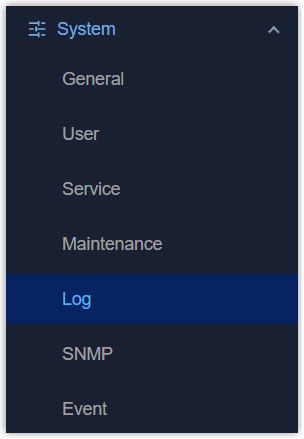
- On the left bar, select System > Log page.
- The system logs will display in the view. If you require updating the logs in
the view, please switch to other pages and then return to this one.
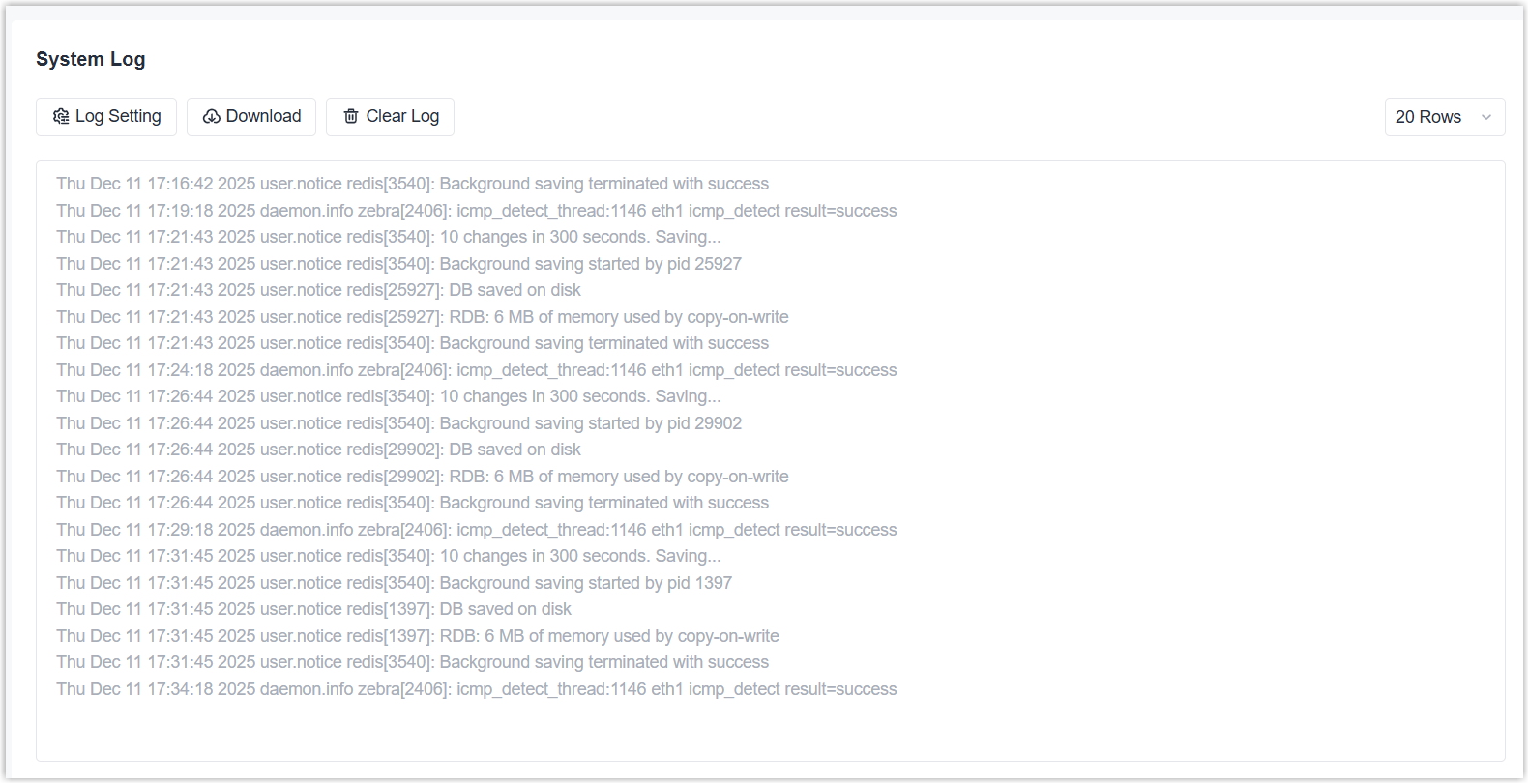
- Click Log Setting to configure related parameters, then click
Save.
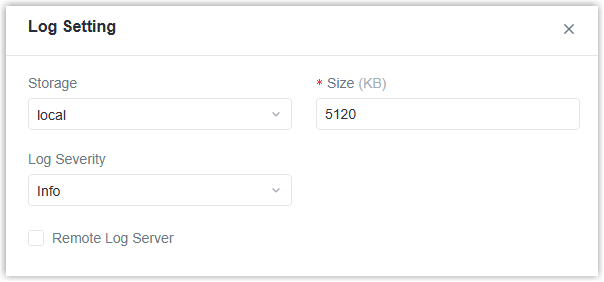
Parameter Description Storage Select the log storage location. Size Set the log file size to store. Log Severity Select the severity to display the logs. To submit logs to technical support, it is recommended to set the log severity to Debug. Note: After changing the log severity, please replicate the issue to ensure the logs capture the details.Remote Log Server Enable or disable to send all log files to a remote server. Syslog Server Address: Set the remote log server address (IP/domain name).
Port: Set the remote log server port.
- Click Download to download all log files as required. You can unzip the log files to check directly or send them all to Milesight technical support.