Maintenance
This chapter describes the maintenance tools and features.
Tools
This section is used to check network connectivity via different tools.
Steps:
- On the left bar, select System >
Maintenance page.
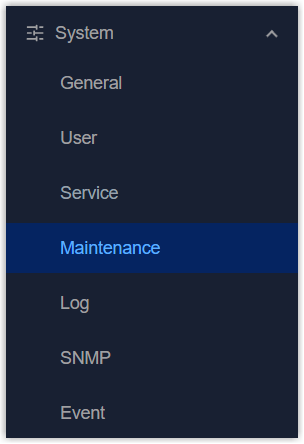
- On the top bar, select Tools tab.
- The device provides 5 tools for debugging. Please select according to your
problems.
Tool Feature Steps Ping Test network connectivity and latency between the device and target hosts. 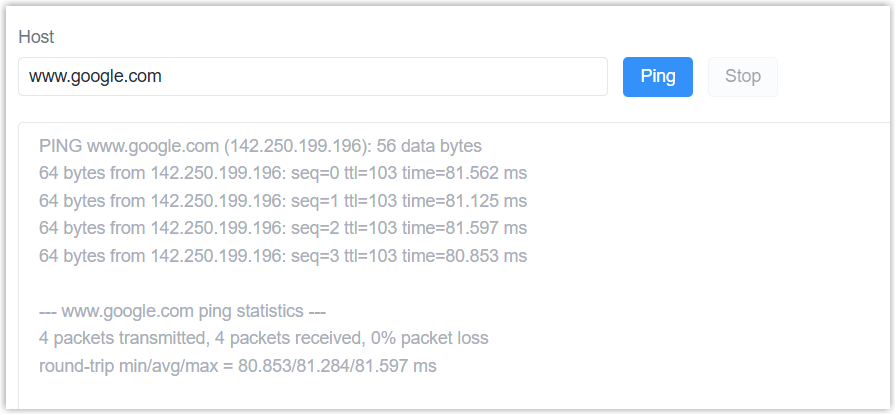
- Enter an IP address or a domain name.
- Click Ping.
Traceroute Trace the route that packets take from the device to the target host. 
- Enter an IP address or a domain name.
- Click Trace.
Packet Analyzer Capture network packets passing through the device network interfaces via TCPDUMP. 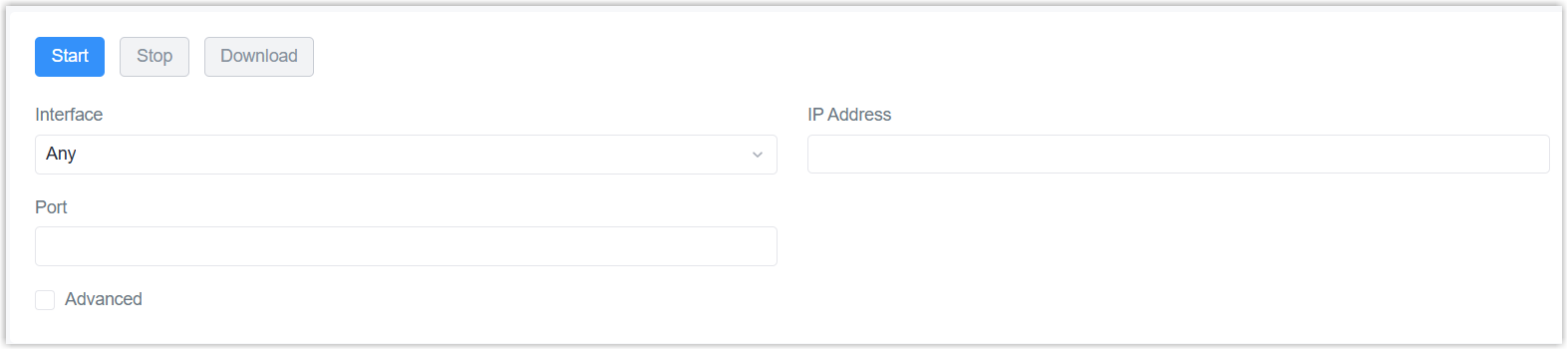
- Configure the packet capture conditions like interface, IP address or port. For more complex requirements, enable Advanced and enter the TCPDUMP command.
- Click Start and wait for a while.
- Click Stop to stop capturing.
- Click Download to download .pcap file.
- Use a tool to analyze the file, or send it to Milesight technical support.
Qxdmlog Collect diagnostic logs from cellular modules. 
- Click Start and wait for more than 2 minutes.
- Click Stop to stop collecting.
- Click Download to download the logs and send them to Milesight technical support.
Cellular AT Debug Send AT commands to get debug info from cellular module or configure the module. 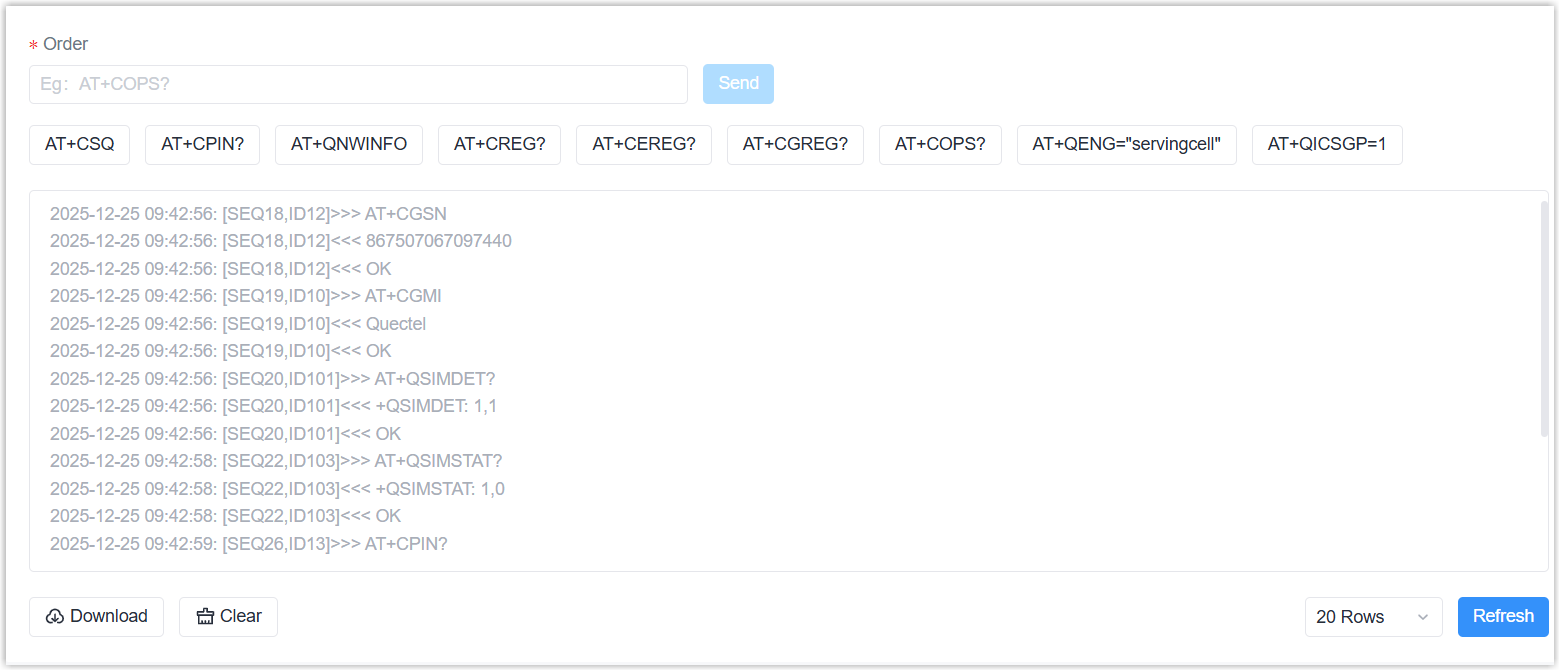
- Enter the AT commands, click Send. Or click the preset command buttons to send directly.
- Check the cellular logs on the box, and click Download to download the log files as required.
- Send the file to Milesight technical support.
Schedule
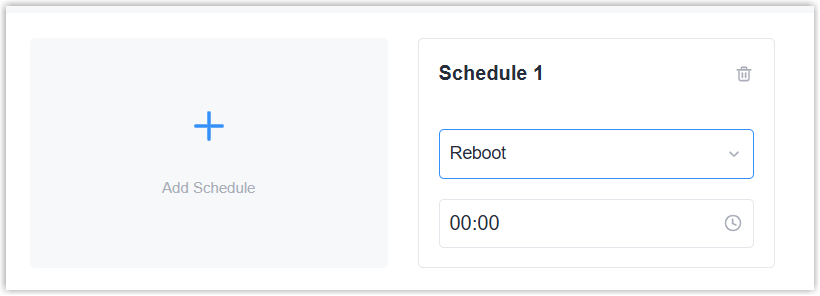
This section is used to add schedule reboot settings.
Prerequisites: Ensure the device time is correct.
Steps:
- On the left bar, select System >
Maintenance page.
- On the top bar, select Schedule tab.
- Click Add Schedule to add a new schedule.
- Select the reboot event and select the reboot time.
- Click Apply to save the settings.
Backup and Restore
This section is used to backup and restore settings.
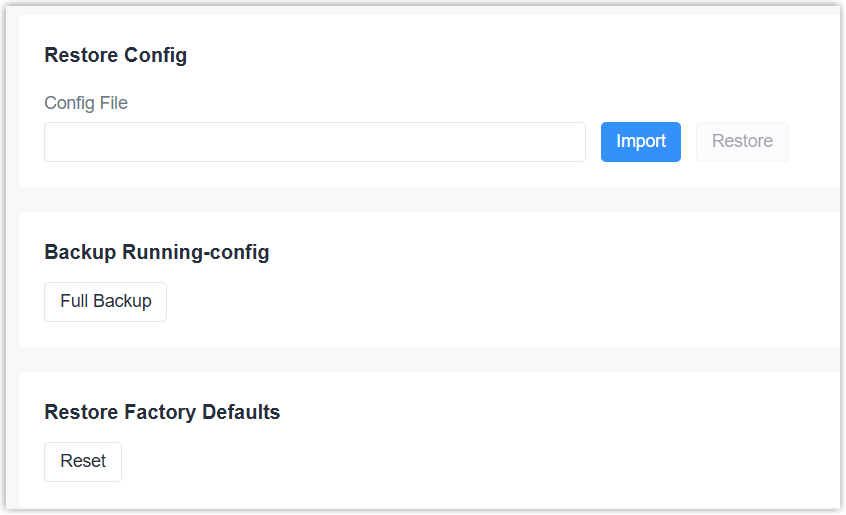
Backup and Restore Steps:
- On the left bar, select System >
Maintenance page.
- On the top bar, select Backup and Restore tab.
- Click Full Backup to download the configuration file of current device.
- Open the web GUI of a new device, click Import to select the configuration file from the local path.
- Click Restore to import the configurations to a new device.
Factory Reset Steps:
- Click Reset to reset factory default settings.Note: If it is not possible to log in to the web GUI, please use the reset button to reset the device.
Upgrade
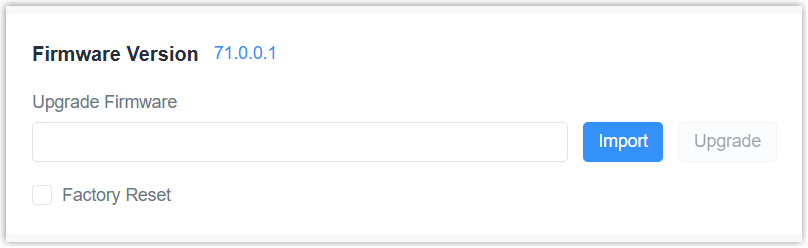
This section is used to upgrade the device.
Prerequisites:
- Download the correct device firmware file from Milesight official website. It is recommended to consult technical support before upgrading to ensure a safe and successful upgrade.
- Ensure the network connection is stable enough for upgrade.
Steps:
- On the left bar, select System >
Maintenance page.
- On the top bar, select Upgrade tab.
- Click Import to select the firmware file from the local path.
- Enable Factory Reset as required. After enabled, the device will reset factory default settings after upgrade.
- Click Upgrade to upgrade the device.CAUTION: Any operation on web page is not allowed during firmware upgrade; otherwise, the upgrade will be interrupted, or the device may even become inoperable.
- When the SYS LED of the device turns to static green, log in to the web GUI to verify that the upgrade was successful.
Reboot
This section is used to reboot the device.

Steps:
- On the left bar, select System >
Maintenance page.
- On the top bar, select Reboot tab.
- Click Reboot to reboot this device.