Add a Detection Line
This section describes how to draw a detection line to count the number of people entering or exiting.
Detection line drawing requirements:
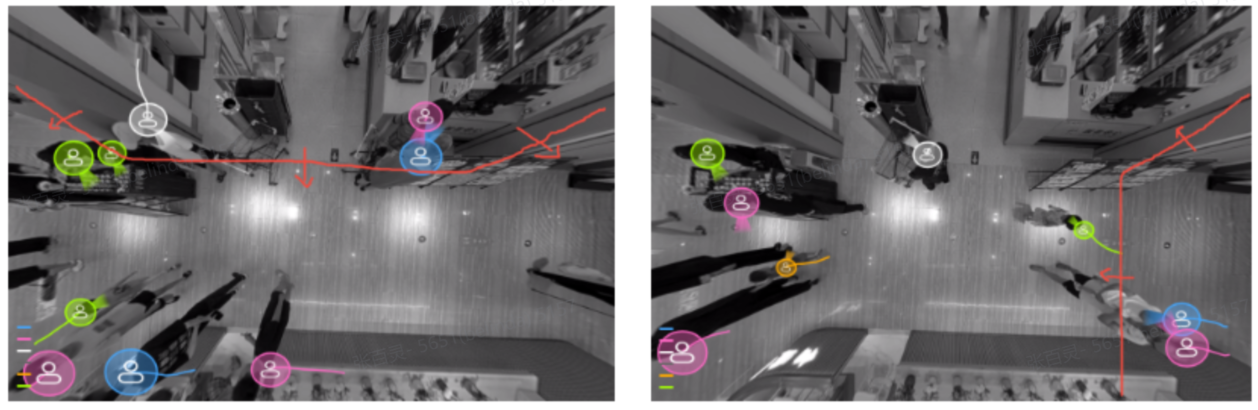
- Completely traversed by targets.
- Perpendicular to the movement direction.
- Positioned centrally within the detection area.
- Free of adjacent obstructions.
- As close to the center of the preview as possible.
- Maintain sufficient identification space on both sides.
Prerequisite:
The deployment parameters and device strategies are configured.
Steps:
- In the main page, click Rule from the navigation tree on the left.
-
In the Line Cross Counting area on the right, click +Add.
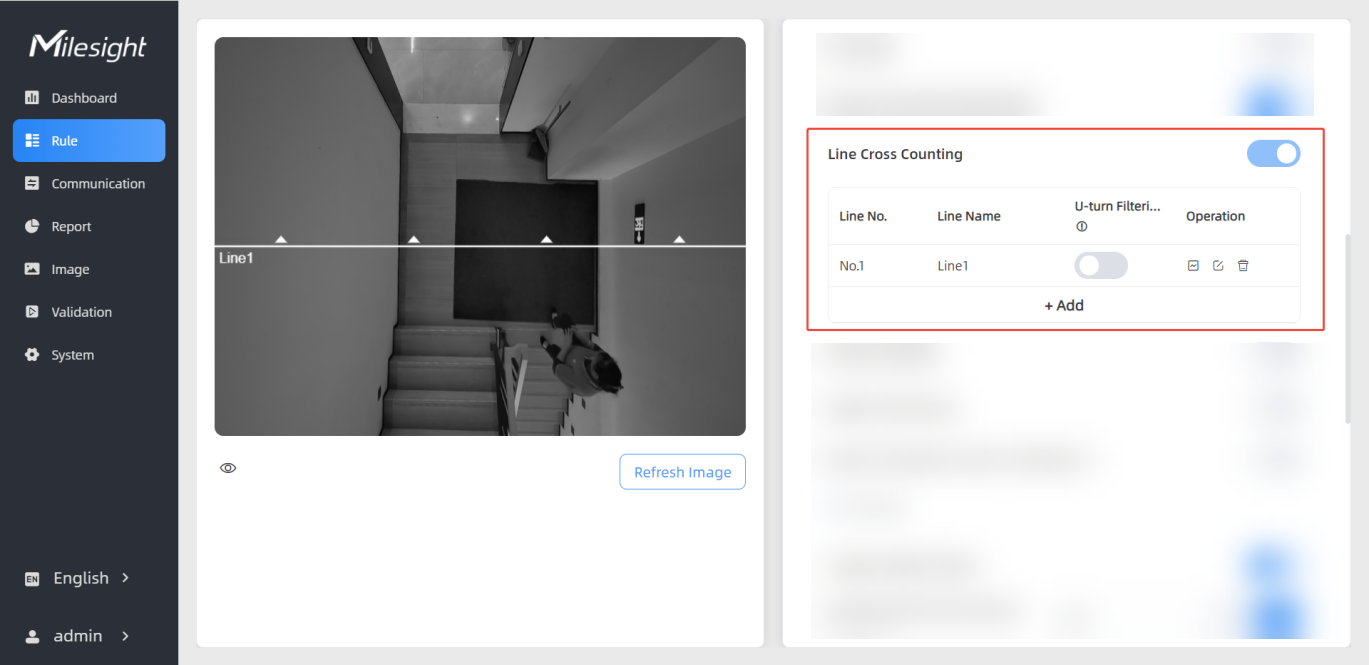
-
Draw a detection line in the preview, you can draw up to 4 polylines with a maximum of 10 points per polyline:
- Left-click to start and drag to draw the first line segment. The arrow in the middle of the segment indicates the direction of entry.
- Left-click to add vertices and change direction and drag to draw another line segment.
- Repeat step b to draw more line segments as needed.
- Right-click to finish.
- (Optional) Adjust the line location and length by dragging.
- (Optional) To redraw a line, click Clear This Line.
- (Optional) To flip the line direction, click Flip Direction.
- Click
 to save the configuration.
-
The line information is listed in the Line Cross Counting area.
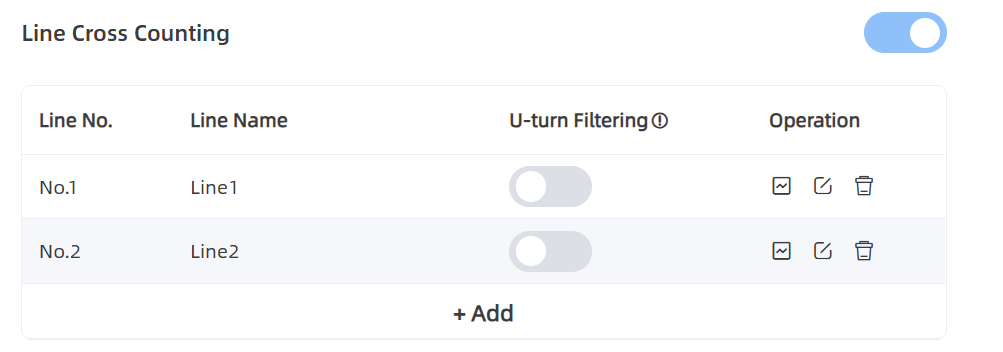
- (Optional) Click
 to customize the line name.
 - (Optional) To enable U-turn Filtering, click
 . For detailed configuration, refer toConfigure U-turn Filtering.
 - Check data through any of the following methods:
- To check the visual configuration effect, click
Dashboard from the left navigation tree.
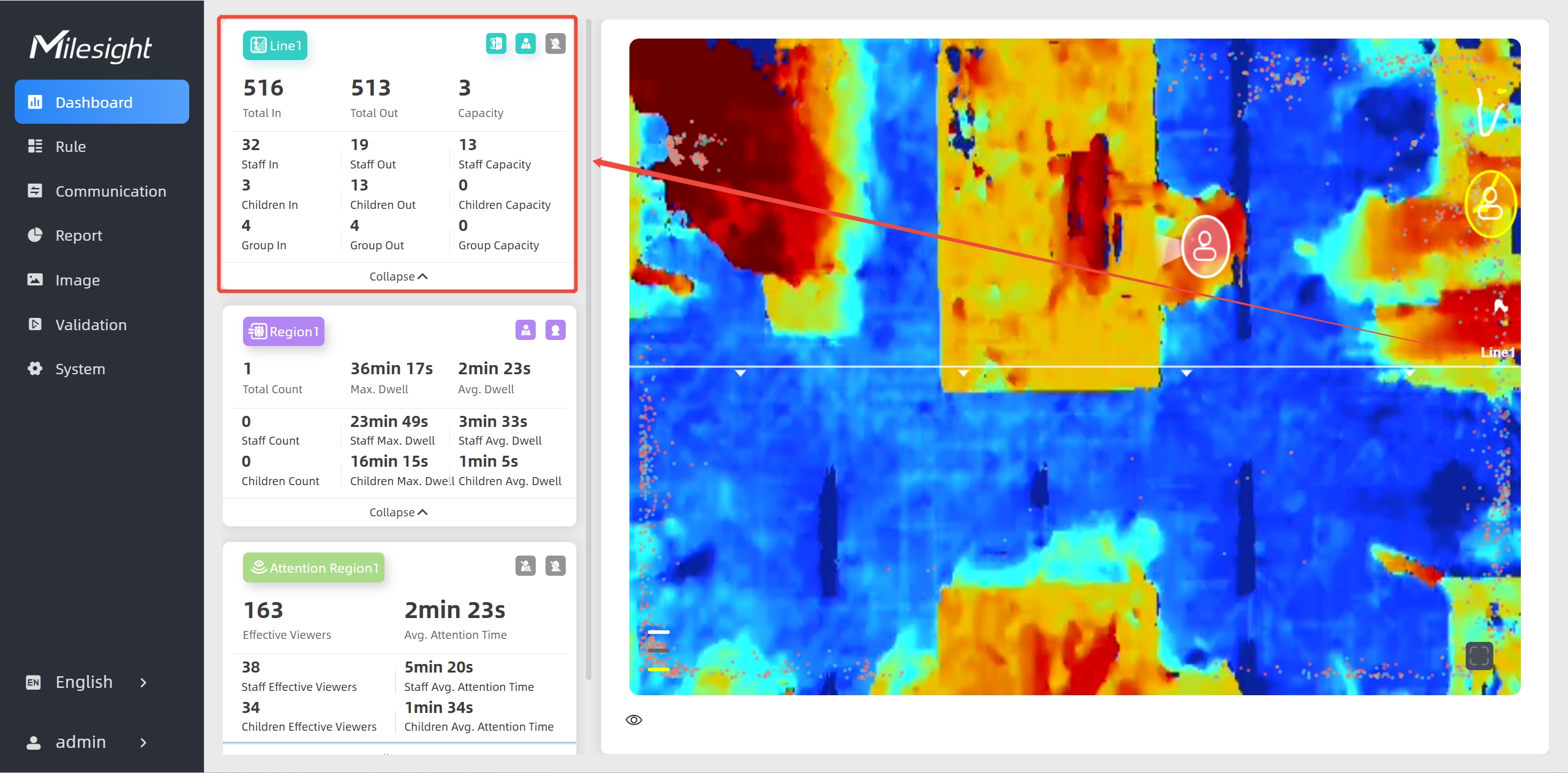
- To view the line data for a certain time period and
generate report, click Report from the navigation tree on the
left. .
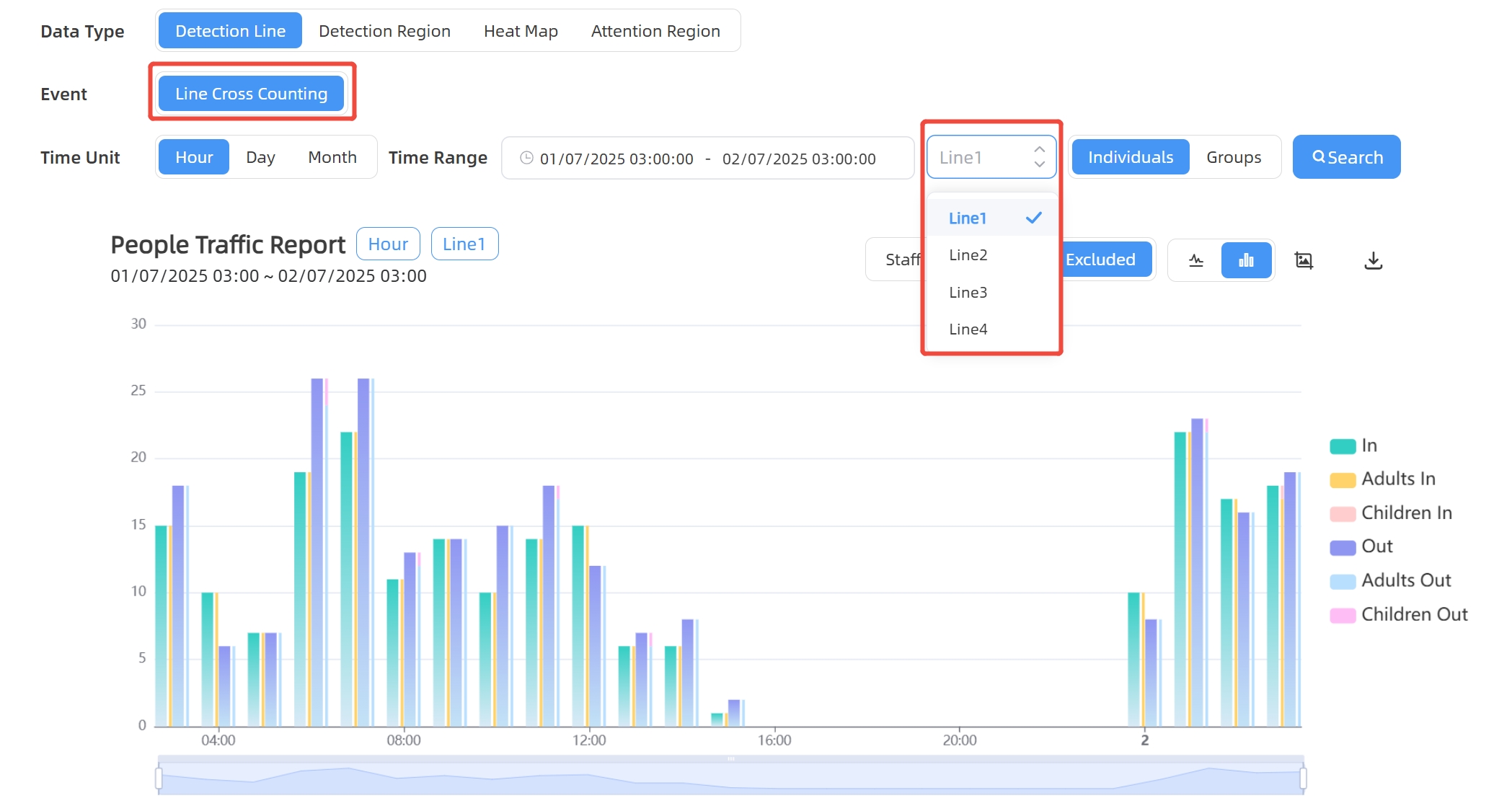
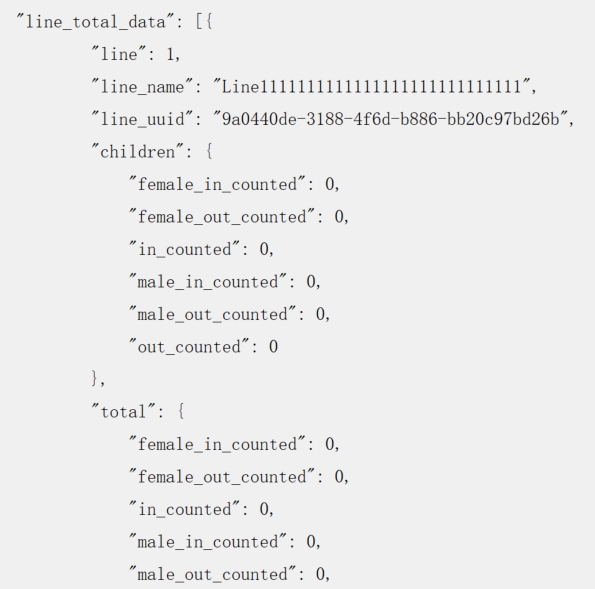
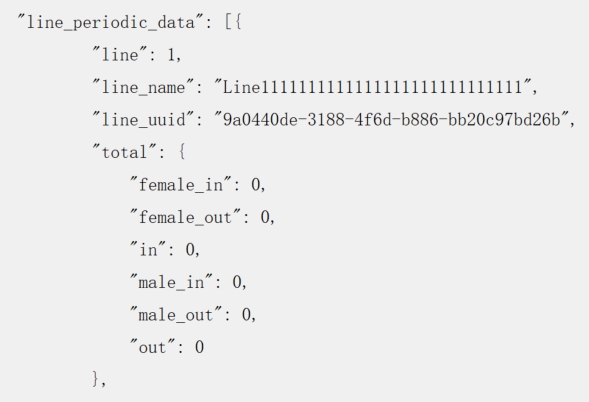
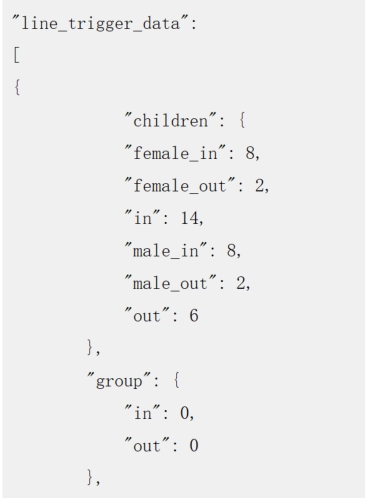
- If recipients are added, check data through command line
outputs. For "line_periodic_data" and "line_total_data", refer to Uplink Data
Example for Periodic Reporting. For "line_trigger_data",
refer to Uplink Data Examples for Trigger Reporting.
- To check the visual configuration effect, click
Dashboard from the left navigation tree.