Configure U-turn Filtering
This section describes how to configure the U-turn Filtering function.
The device supports the U-turn filtering function. It eliminates duplicate
counting by identifying individuals who do not complete a full entrance/exit transition.
You can draw an area for every detection line and the device will analyze movement
patterns within the defined areas and registers counts only when a person fully
traverses the area.
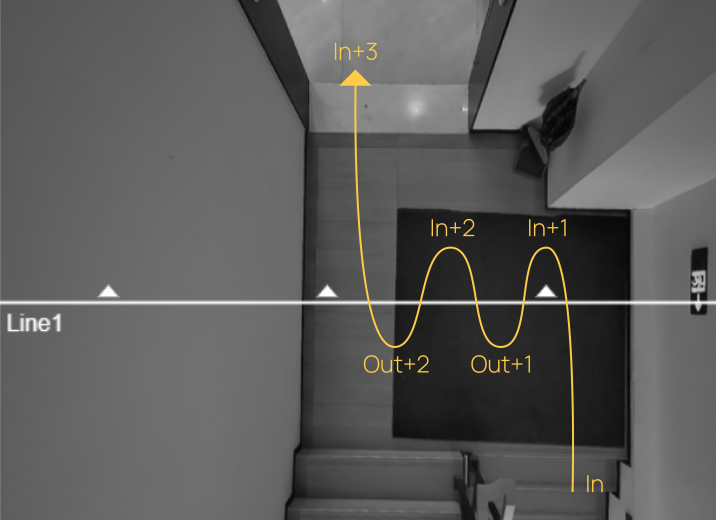
- Counting example when U-turn filtering is disabled:
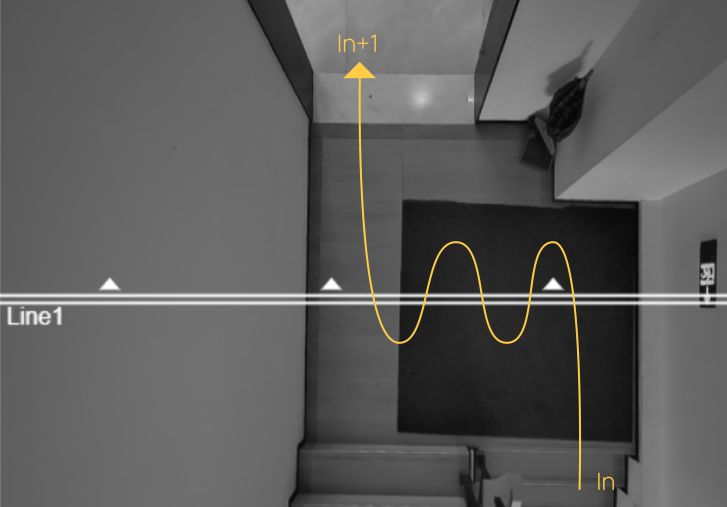
- Counting example when U-turn filtering is
enabled:
The device automatically filters out wandering individuals in the preview.
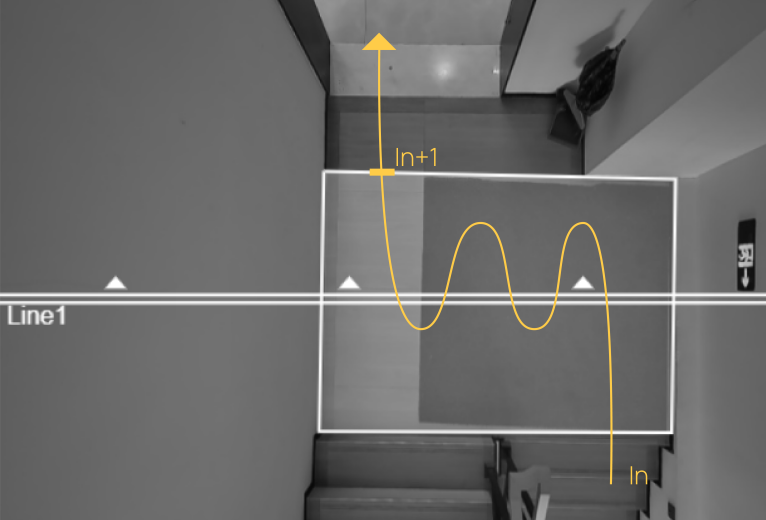
- Counting example when U-turn filtering is enabled and the U-turn area for the
detection line is
drawn:
When you care about the timeliness of the statistics, you can draw the U-turn area.
Prerequisite:
A detection line is added in the Line Cross Counting area on the Rule page.
Steps:
- In the main page, click Rule from the navigation tree on the left.
-
In the Line Cross Counting area, enable U-turn Filtering to filter repeated counting.
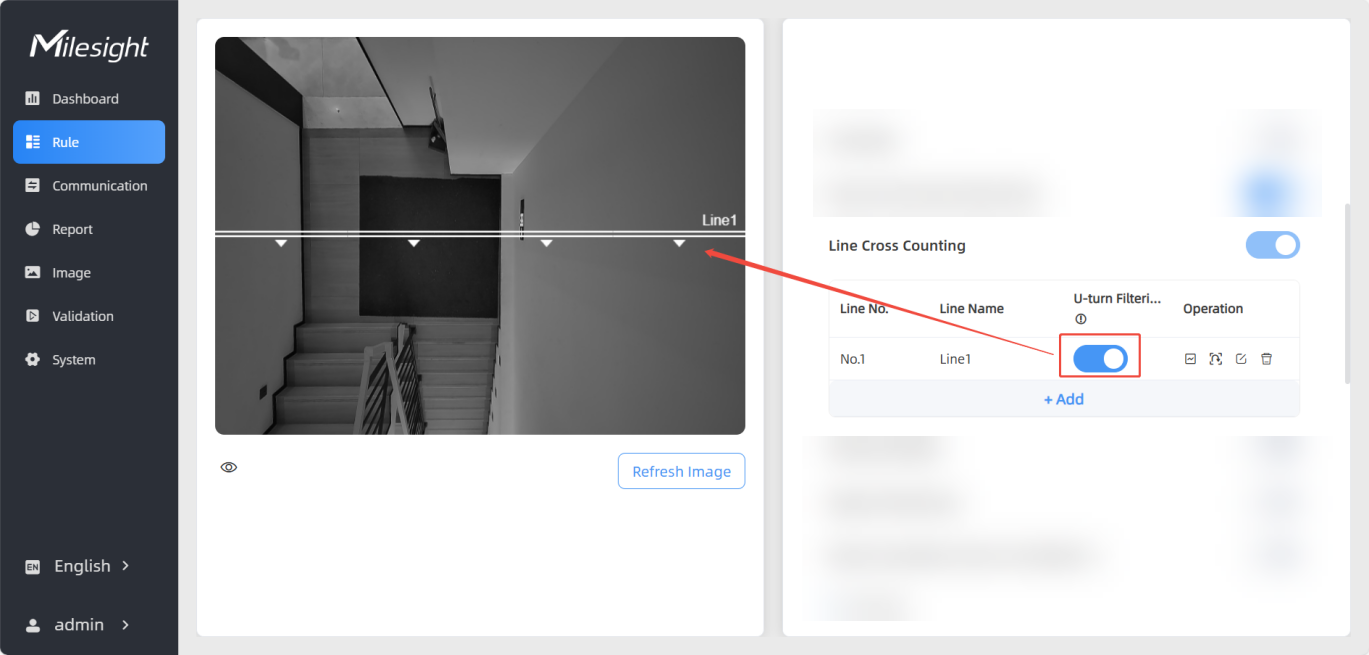
- Click
 to draw a U-turn area
for the detection line in the preview.
to draw a U-turn area
for the detection line in the preview.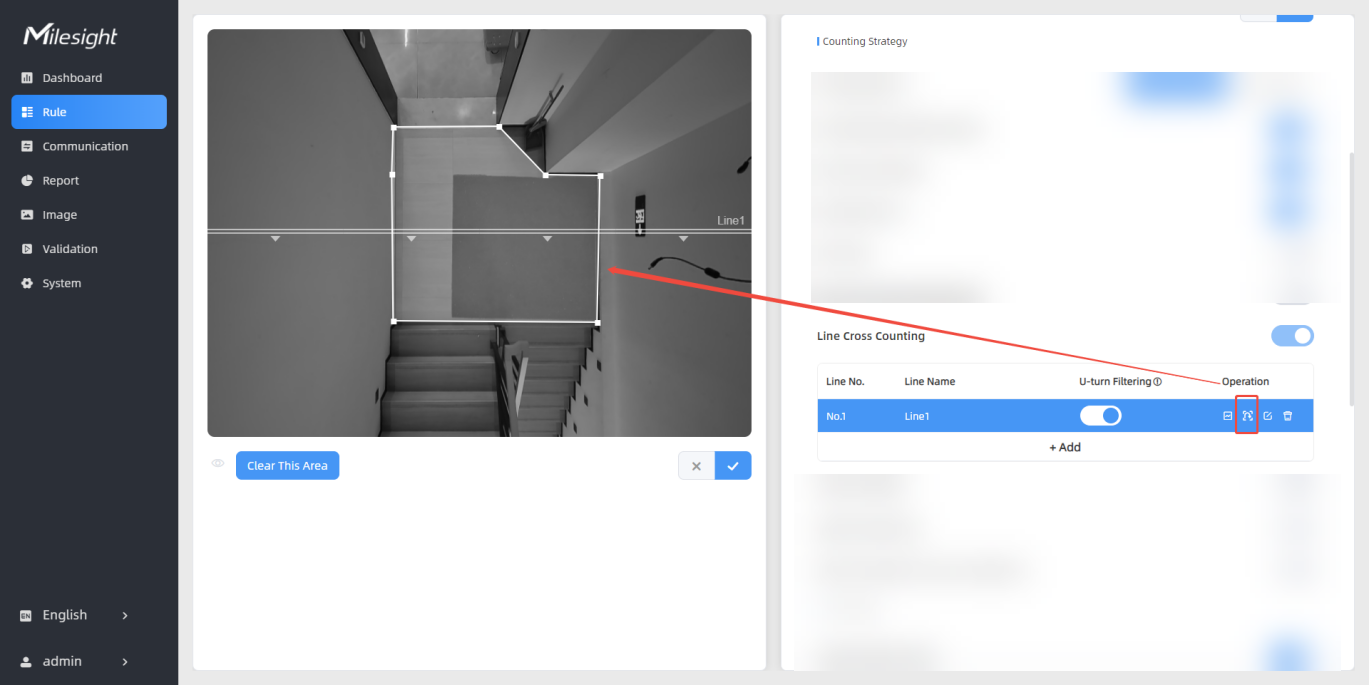
-
(Optional) Draw a U-turn area for the detection line, you can draw up to 4 areas with a maximum of 10 line segments per area:
- Left-click to start and drag to draw the first line segment.
- Left-click to add vertices and change direction and drag to draw another line segment.
- Repeat step b to draw more line segments as needed.
- Right-click to finish.
- (Optional) Adjust the region by dragging.
- (Optional) To redraw an area, click Clear This Area.
- Click
 to save the configuration.Note: Ensure the movement trajectory is fully included.
- (Optional) To delete a U-turn area, click and click Clear This Area.
-
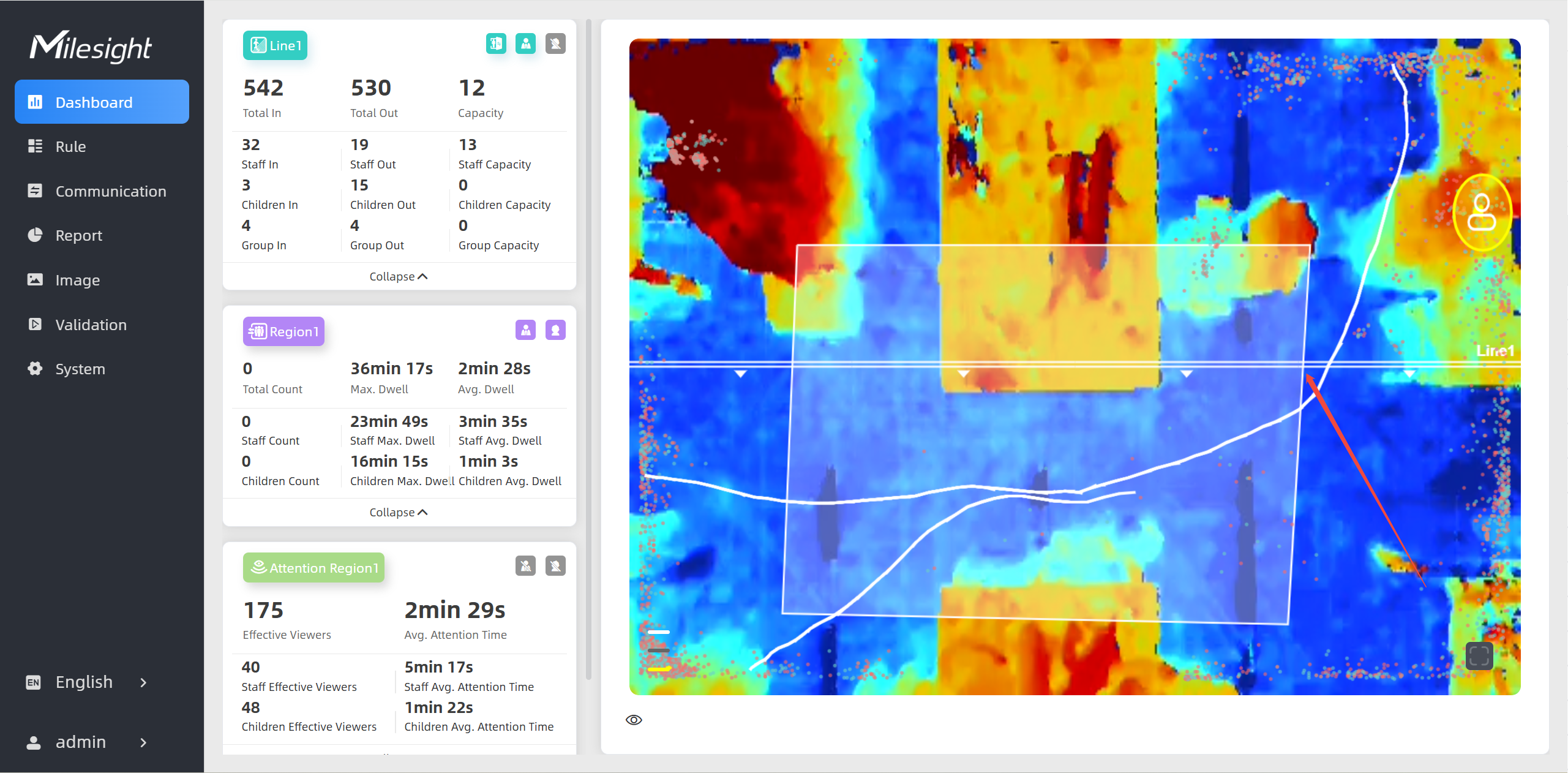
To check the visual configuration effect, click Dashboard from the left navigation tree.