LoRa
This chapter describes the frequency settings for LoRaWAN® communication.
Basic Settings
This section is used for most of LoRaWAN® device communication.
- On the left bar, select Network > Interface
page.
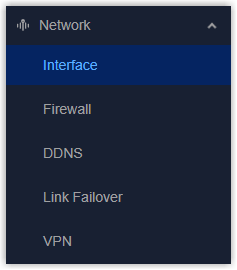
- On the top bar, select LoRa tab.
- Select the channel plan the same as the LoRaWAN® end devices.
- Configure the frequency parameters as required. You can also keep these
settings by default.
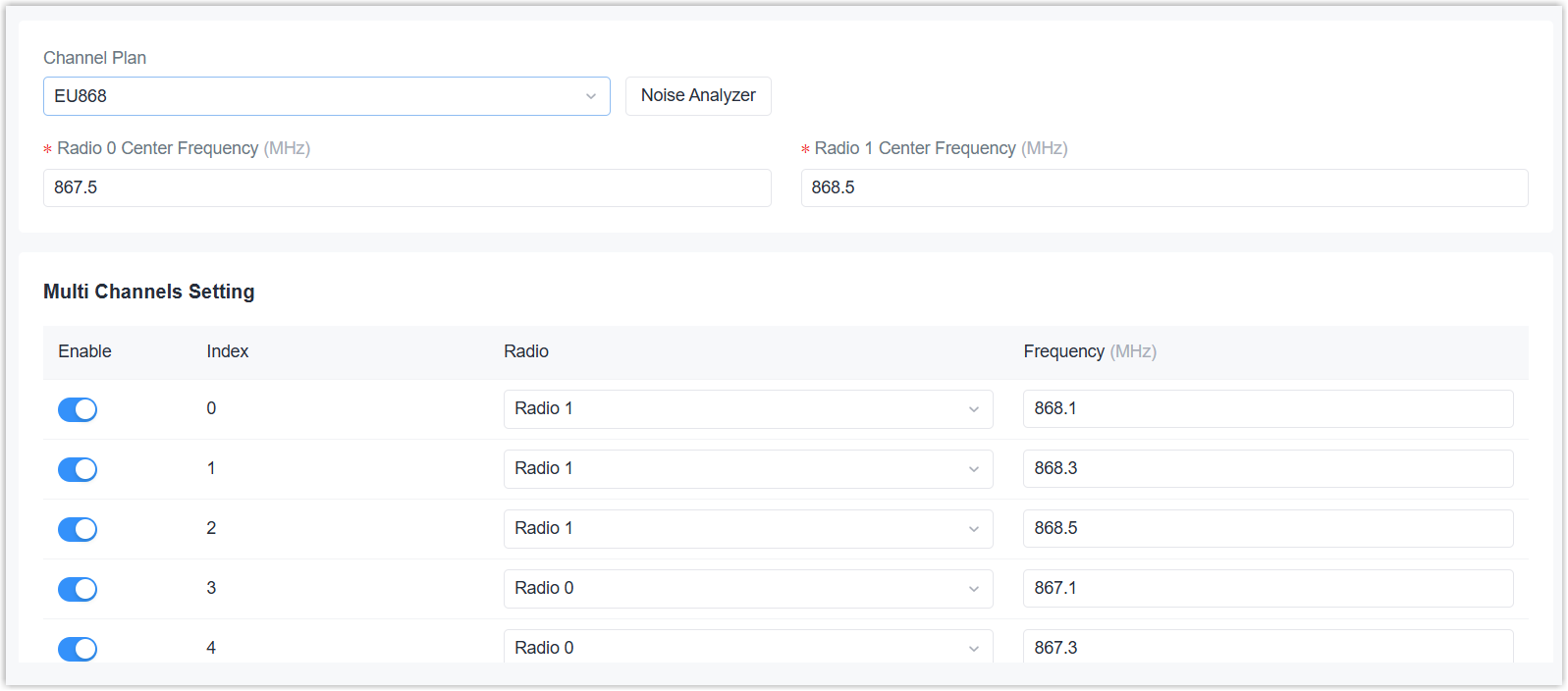
Parameter Description Channel Plan Select the channel plan of the network. The options vary by model: -868M: EU868, IN865, RU864
-915M: AU915, US915, KR920, AS923-1/2/3/4
-470M: CN470Noise Analyzer Click here to see details. Center Frequency Set the center frequencies of different modules. Multi Channels Setting Enable Enable or disable the channel to transmit packets. Radio Select Radio 0 or Radio 1 as center frequency. Frequency Set the frequency point of every channel. LoRa/FSK Channel Setting Enable Enable or disable the LoRa/FSK channel. Radio Select Radio 0 or Radio 1 as center frequency. Frequency Set the frequency of the LoRa/FSK channel. Bandwidth Set the bandwidth of the LoRa/FSK channel. Data Rate Set the data rate of the LoRa/FSK channel. - Configure the advanced settings as required.
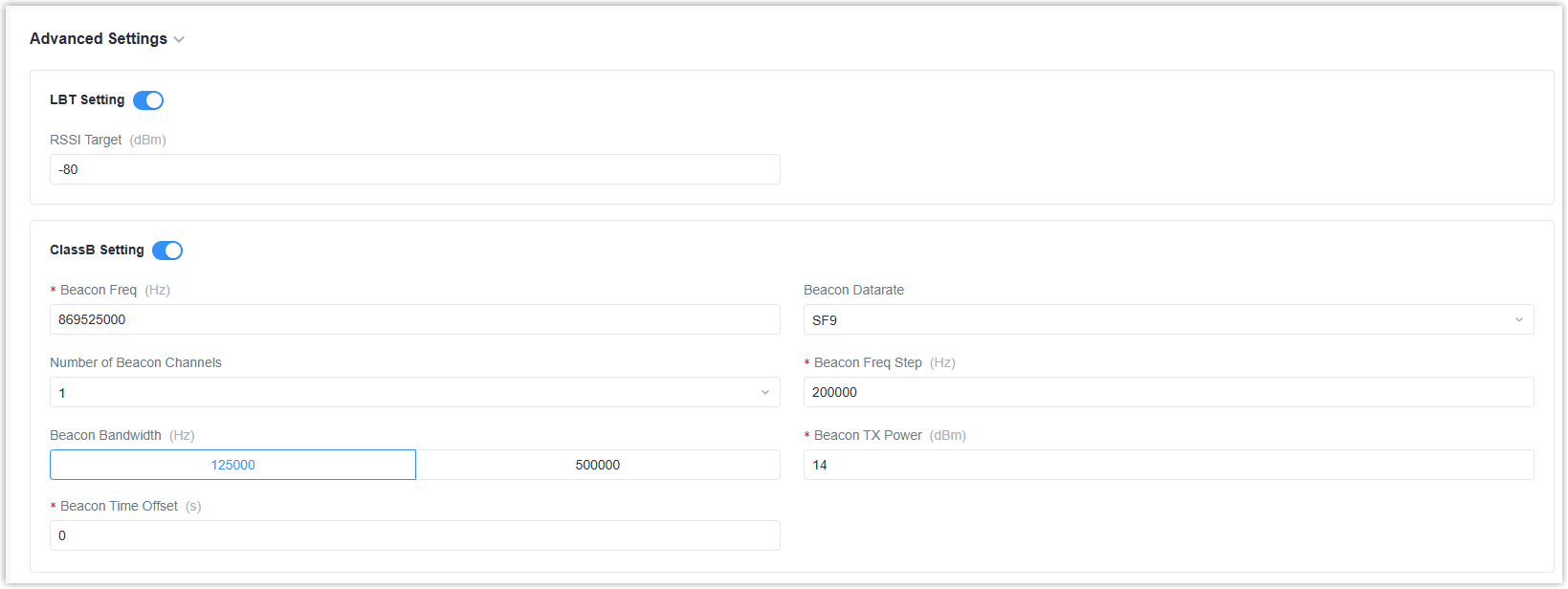
Parameter Description LBT Setting Enable or disable LBT feature. Listen before talk (LBT) is used to detect whether the downlink channel is idle and avoid channel access conflicts. Note: AU915 and US915 do not support this feature.RSSI Target: Enter the criteria of an idle channel. If the actual RSSI of a channel is less than the criteria/target, the channel is considered as idle.
Class B Setting Enable or disable to send beacons to communicate with class B end devices. Beacon Freq: The frequency to transmit the beacons.
Beacon Datarate: The datarate to transmit the beacons.
Number of Beacon Channels: The number of used beacon channels.
Beacon Freq Step: The frequency step to transmit the beacons.
Beacon Bandwidth: The bandwidth of the beacons.
Beacon Tx Power: The Tx power of the beacons.
Beacon Time Offset: Add this offset to the system time and assign the time result to class B devices. This can avoid the interference when multiple class B devices are close. - Click Apply to save the settings.
Noise Analyzer
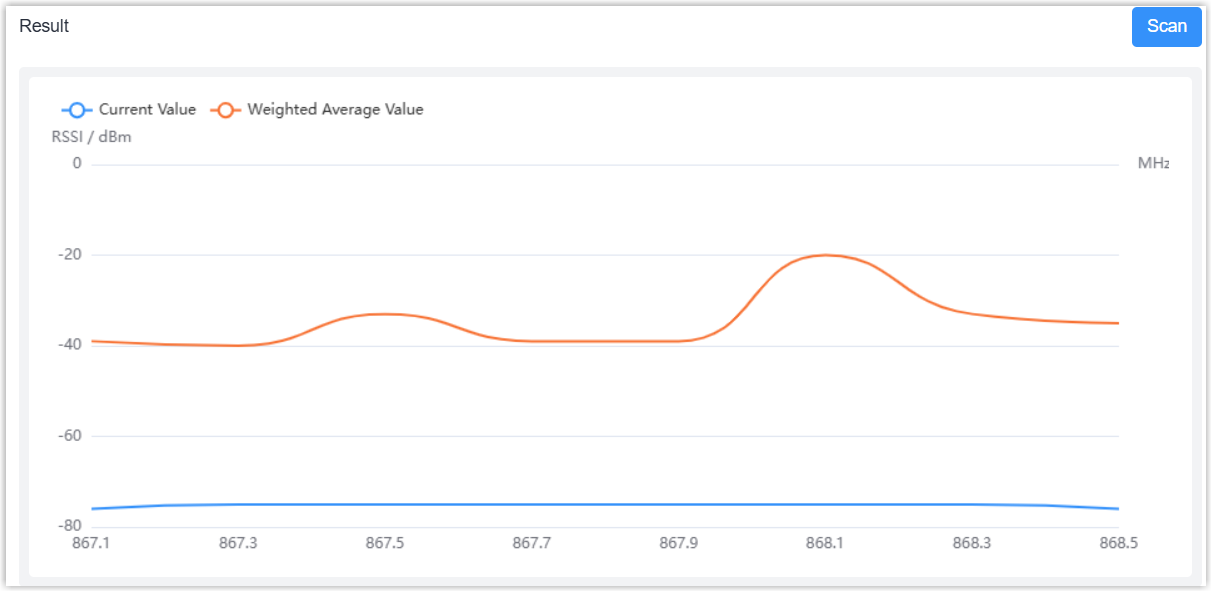
Noise analyzer is used for sweeping the noise of every frequency channel and giving a diagram for users to analyze the environmental interference condition and select the best deployment.
- The device is placed to the target location. If the installation location is changed, please reproduce the noise analyzer.
- This feature will impact LoRaWAN® downlink transmission, so do not send downlink commands to devices during sweeping.
- Click Noise Analyzer.
- In the pop-up window, configure the frequency range and the time.
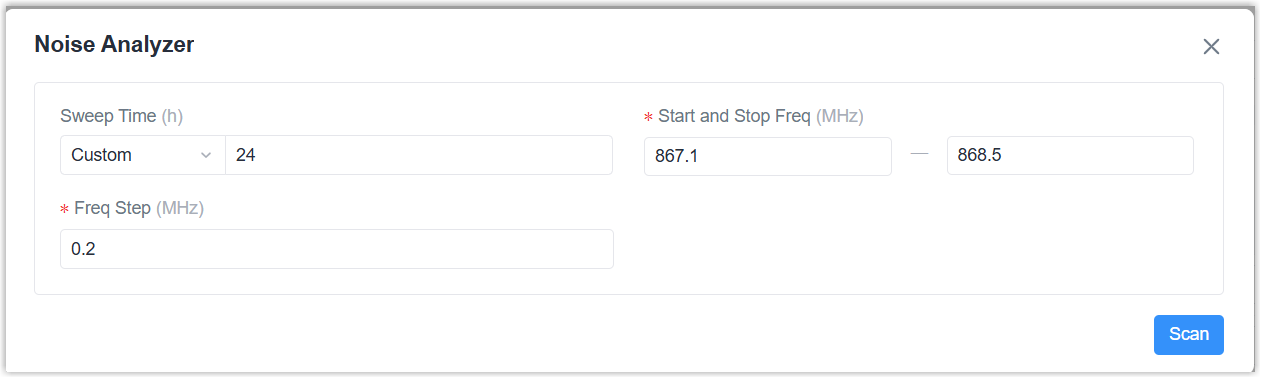
Parameter Description Sweep Time Set the time to sweep the frequency range. Continuous:Sweep the frequencies continuously.
Custom: Custom the time to sweep the frequencies.Tip: To ensure the accurate result, it is recommended to set the sweep time as 24h.Start and Stop Freq Configure the frequency range to scan. Freq Step Configure the step for each frequency channel to be scanned. - Click Scan to start sweeping the frequencies.
- The device will stop sweeping after the custom time, or click Stop Scanning.
- Check the analysis results. The lower the RSSI value, the better the signal.
- Adjust the frequencies in Multi Channels Setting as required.