FUOTA
Firmware Update Over the Air (FUOTA) is a standard for distributing firmware updates to LoRaWAN® end devices using unicast or multicast. This chapter describes how to upgrade the end devices.
Prerequisites
-
The end device supports the standard FUOTA protocol or has been updated to support FUOTA.
- The end devices has been added to the gateway.
Steps
- On the left bar, select Data Service > Data
Acquisition page.
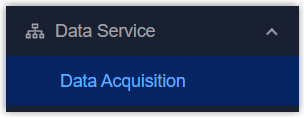
- On the top bar, select LoRaWAN tab, then select FUOTA tab.
- Click +Add to add a FUOTA task and configure the related
parameters.
Parameter Description Task Settings Task Name Define a unique name for the FUOTA task. Start Time Select the time to start this task. Description For noting this task. Firmware Setting Firmware Import the firmware to upgrade. Upload: Click to select the firmware from the local path.
Select an official firmware file: Select the firmware to download from the official website. This requires the gateway to have Internet access.Fragment Size The firmware file will be split into segments of this size for distribution to devices. Typically, retain the default value. If the network environment is complex or bad, it is suggested to reduce this value to 64 or a lower value; if the network environment is good, this value can be increased to improve transmission speed.
Fragment Interval The interval to assign firmware fragments to devices. Typically, retain the default value.
If the network environment is complex or bad, it is suggested to increase this value to 7-10s or a higher value; if the network environment is good, this value can be decreased to improve transmission speed.
Redundancy Percent The device will send 30% redundant packets for firmware packet correction. Typically, retain the default value. If the network environment is complex or bad, it is suggested to increase this value to 40%-50% or a higher value to improve transmission success; if the network environment is good, this value can be reduced.
Multicast Setting Datarate Datarate to assign the firmware fragments to devices. Frequency Downlink frequency to assign the firmware fragments to devices. - Select the devices to execute this task. Please select the devices with the same
model.

- Click Apply to save the settings.
- Check the task status on the list.

Parameter Description Task Name Displays the task name. Firmware Displays the firmware to upgrade in this task. Status Displays the task status. Pending: Wait for the scheduled time to process the task.
Waiting: Preparing to create a session for the upgrade.
Executing: At least one device replies the upgrade result.
Finished: All devices reply the upgrade results including success and failure.Progress Displays the number of devices in upgraded/planned status. Create Time Displays the time to create this task. Start Time Displays the time to start this task. End Time Displays the time to complete this task. Operation  : Edit this task when task
status is Pending.
: Edit this task when task
status is Pending. : Check task details,
including the success and failure status of every
device.
: Check task details,
including the success and failure status of every
device. : Click Update to
retry the task for devices that failed to upgrade when
task status is Finished, click Delete to delete
this task when task status is Pending or
Finished.
: Click Update to
retry the task for devices that failed to upgrade when
task status is Finished, click Delete to delete
this task when task status is Pending or
Finished.