Multicast
By creating a multicast group, you can send a single downlink payload to a group of devices sharing the same multicast address, session-keys and frame-counter. This chapter describes how to add and use the multicast groups.
Prerequisites
Ensure all LoRaWAN® end devices in the same group meet the following
conditions:
- Support the Multicast feature.
- Be configured with the same parameters: Class Type (Class B or Class C), Multicast Address, Multicast McNetSkey, Multicast McAppSkey, RX2 Datarate, RX2 Frequency, and application port.
- Have been added to this gateway.
Steps
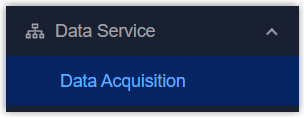
- On the left bar, select Data Service > Data
Acquisition page.
- On the top bar, select LoRaWAN tab, then select Multicast tab.
- Click +Add to add a group and configure the related parameters.
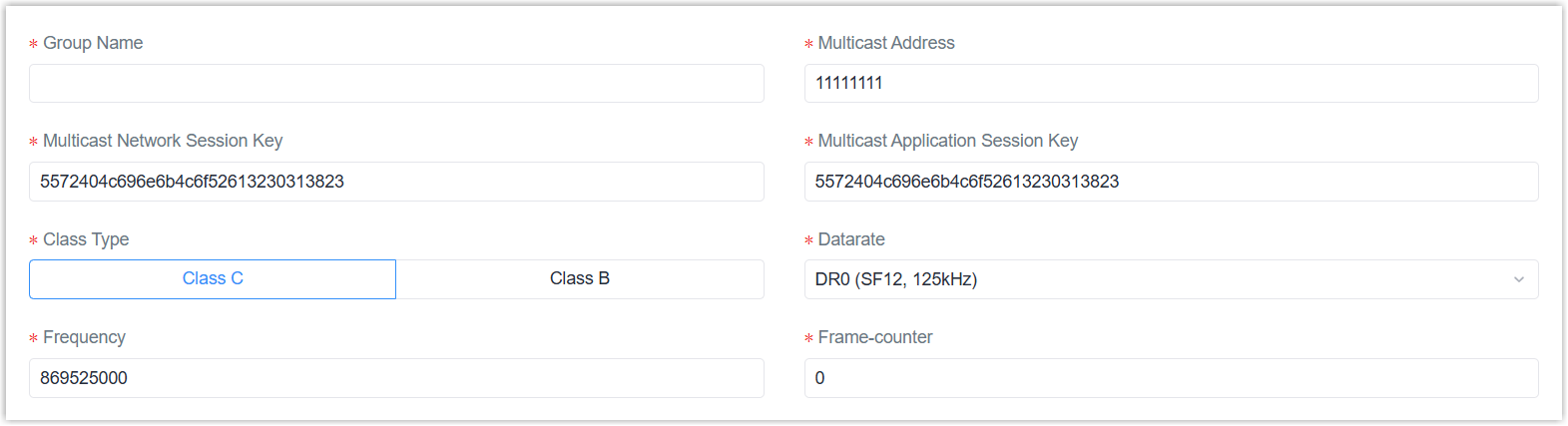
Parameter Description Group Name Define a unique name for the multicast group. Multicast Address Define a unique 8-digit address used to distinguish between different multicast groups. Multicast Network Session Key The network session key (Netwks Key) for all devices in this group. Multicast Application Session Key The application session key (AppSKey) for all devices in this group. Class Type Class B or Class C is optional. Datarate The RX2 datarate used by end devices to receive downlink payloads. Frequency The RX2 frequency used by end devices to receive downlink payloads. Frame-Counter The number of data frames received via downlink packets. It is incremented automatically by the gateway.
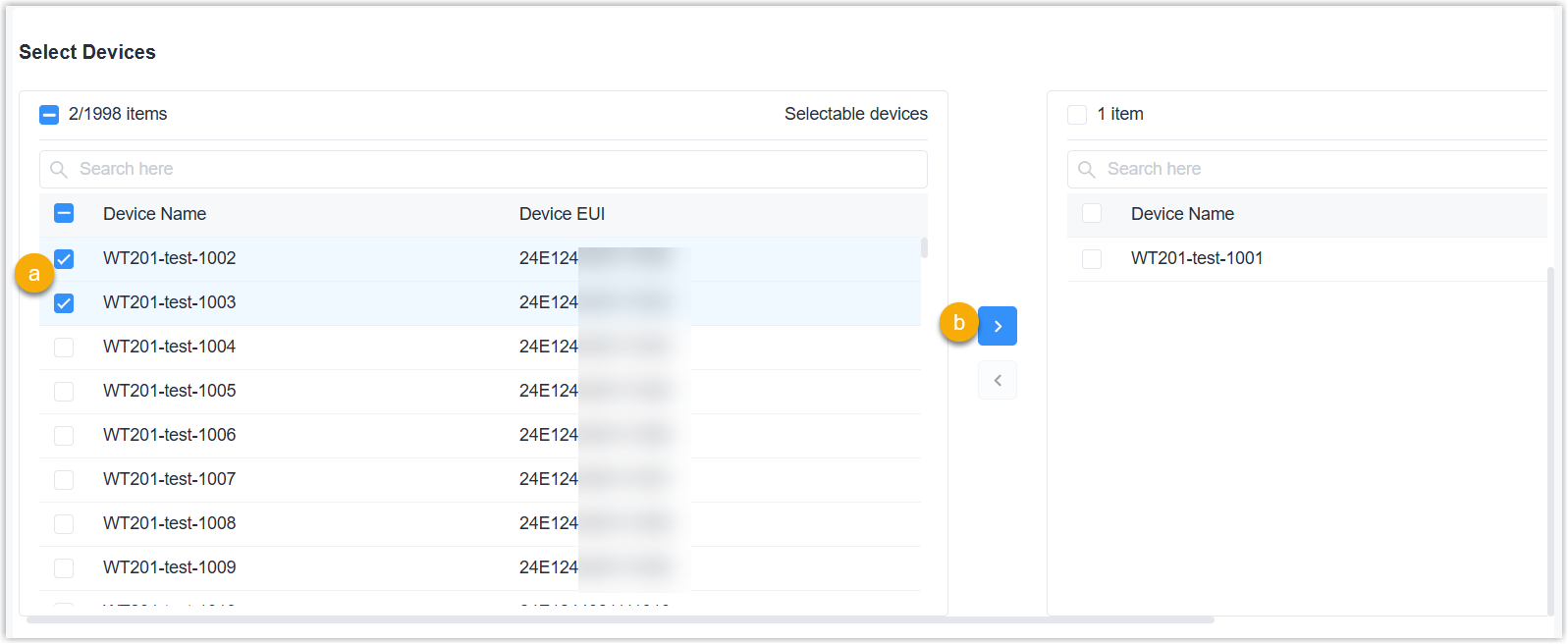
Ping Slot Periodicity The period for end devices to open the ping slot to receive messages for class B devices. - Select the devices to add to this multicast group. Typically, select devices of
the same model.
- Click Apply to save the settings.
- Select a group from the group list, click
 to configure a downlink payload.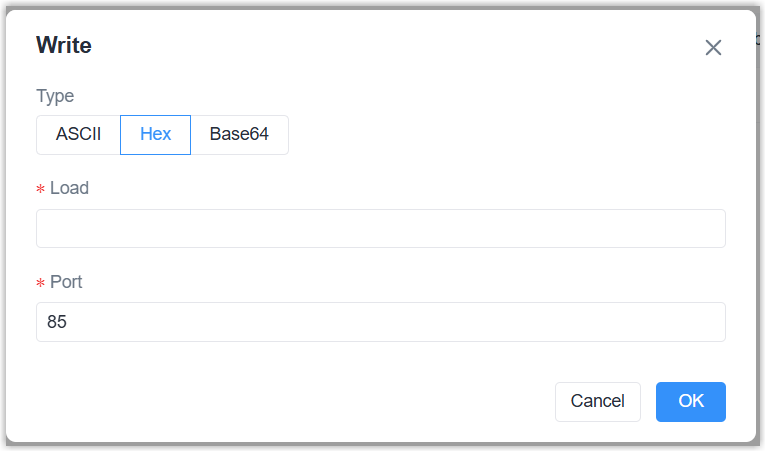
Parameter Description Type Select the downlink payload type. Load Define the downlink payload based on the corresponding type. Port Define the application port for the end devices. - Click OK to send the downlink payload.
- Navigate to Data Service > Data Stream to check downlink sending
status.
